Syncing between XNATs
XSync copies data from a project on this XNAT to a project on another XNAT. Once it is configured, new sessions archived into the source project are transferred automatically, so collaborators on the other site see your data without anyone downloading and re-uploading it.
You configure XSync yourself from the project’s Manage tab. You need to be an Owner of the source project.
Before you start
Section titled “Before you start”You need two things:
- An account on the destination XNAT, with member access to the destination project.
- Owner access to the project on this XNAT that data will be sent from.
Generate an alias token on the destination XNAT
Section titled “Generate an alias token on the destination XNAT”XSync cannot use AAF to log in to the other site, so it authenticates with an alias token instead.
-
Log in to the destination XNAT.
-
Create an alias token there, following Alias tokens.
-
Copy the alias and the secret. The alias is the username and the secret is the password.
Alias tokens expire, so a sync will stop working when the token lapses. Note the expiry date and generate a replacement before then.
Open the XSync configuration
Section titled “Open the XSync configuration”-
Open the source project on this XNAT and select the Manage tab.
-
Expand XSync Configuration.
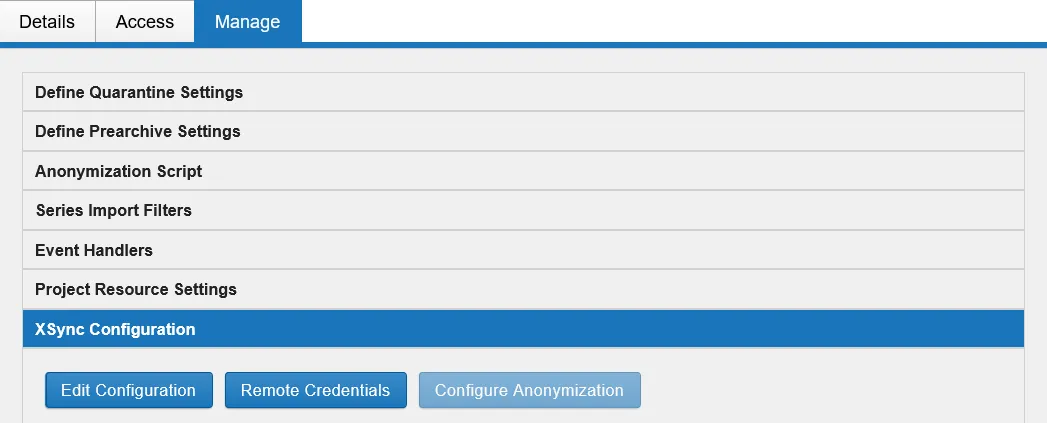
Three buttons are available:
| Button | What it does |
|---|---|
| Edit Configuration | Sets the destination and the sync behaviour |
| Remote Credentials | Stores the alias token used to authenticate to the destination |
| Configure Anonymization | Edits the anonymisation script applied to data as it is sent |
Store the remote credentials
Section titled “Store the remote credentials”Select Remote Credentials and enter the alias as the username and the secret as the password, from the token you generated on the destination XNAT.
Do this before editing the configuration. Without valid credentials the sync has no way to reach the other site.
Edit the configuration
Section titled “Edit the configuration”Select Edit Configuration. The project sync settings open in a dialog.
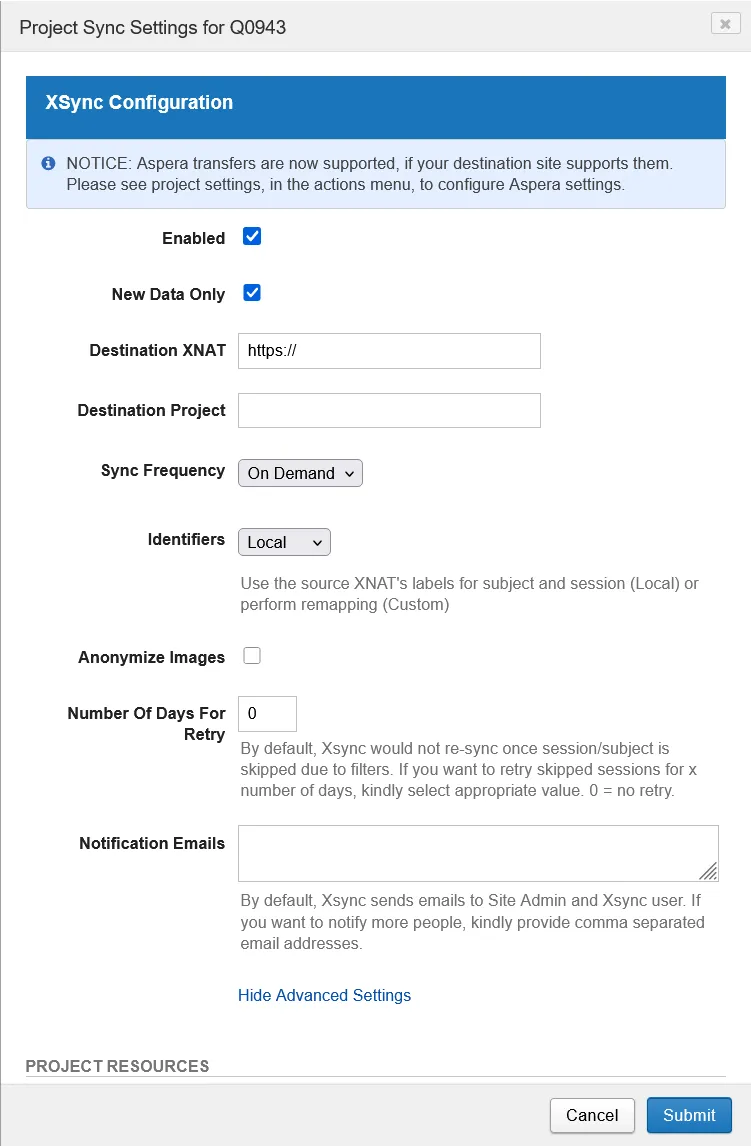
| Field | What to enter |
|---|---|
| Enabled | Turns syncing on for this project. |
| New Data Only | Sends only sessions archived from now on. Clear it to also transfer everything already in the project. |
| Destination XNAT | The full base URL of the other site, including https://. |
| Destination Project | The project ID on the destination XNAT. The project must already exist there. |
| Sync Frequency | How often the transfer runs. On Demand means nothing is sent until you trigger it. |
| Identifiers | Local keeps this site’s subject and session labels. Custom remaps them on the destination. |
| Anonymize Images | Applies the anonymisation script from Configure Anonymization as data is sent. |
| Number Of Days For Retry | Sessions skipped by a filter are not retried by default. Set a number of days to retry them. 0 means no retry. |
| Notification Emails | Comma-separated addresses to notify in addition to the site administrator and the XSync user. |
Select Submit to save.
Getting help
Section titled “Getting help”If the destination site is not reachable, or you are unsure whether syncing is
appropriate for your project, contact RCC support at rcc-support@uq.edu.au with
your project ID and the destination XNAT.